
VS Code Integration
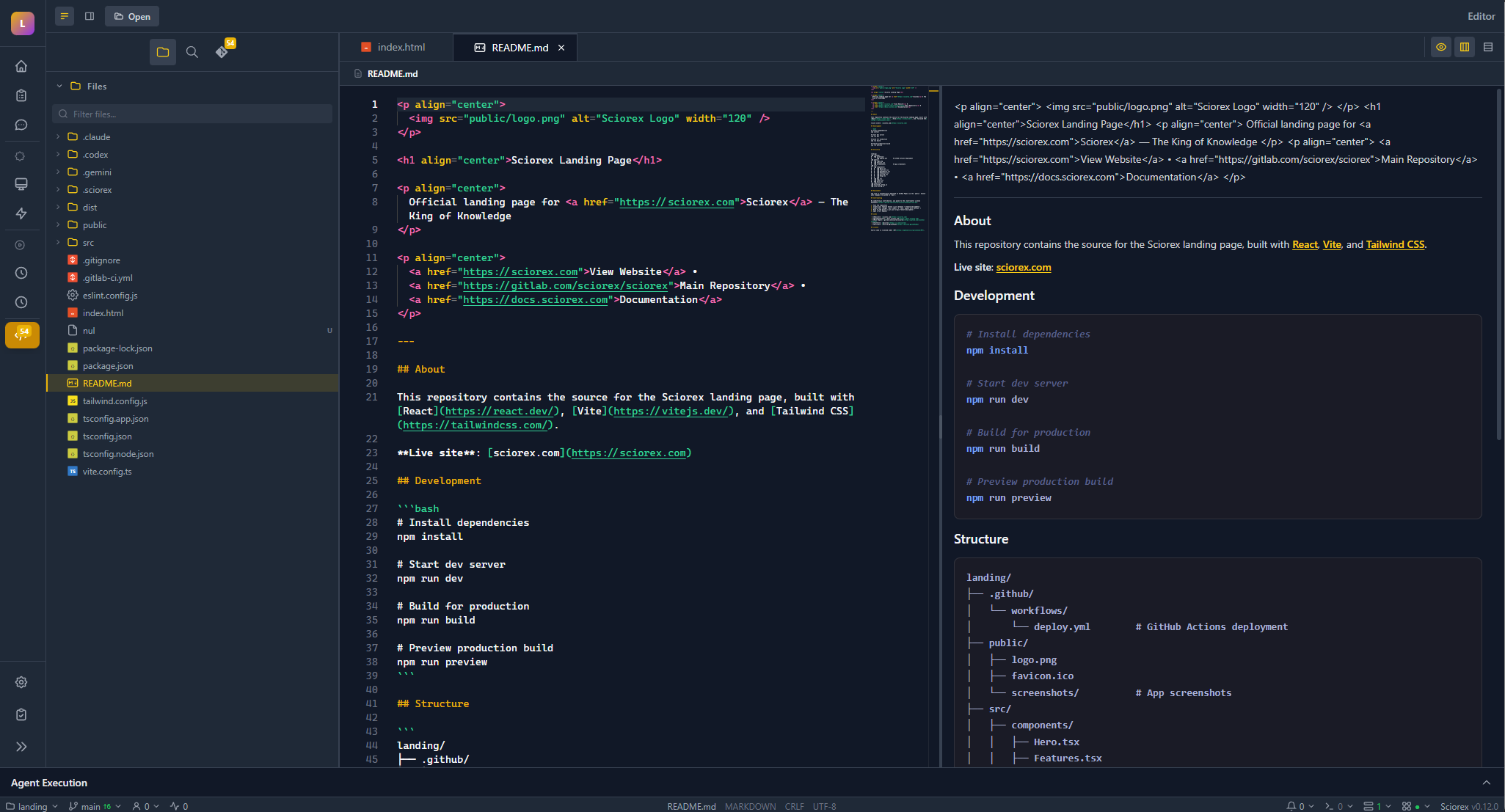
Sciorex can integrate with external code editors like VS Code, Cursor, and Windsurf through the Sciorex Bridge extension. This allows you to use your preferred editor while Sciorex opens files directly in it.
Overview
Instead of using the built-in editor, you can configure Sciorex to open files in an external editor. When you click on file links in chat messages or tool results, the file opens directly in your external editor and brings it to focus.
Supported Editors
The Sciorex Bridge extension works with any VS Code-compatible editor:
| Editor | Supported |
|---|---|
| Visual Studio Code | ✅ |
| Cursor | ✅ |
| Windsurf | ✅ |
| Antigravity | ✅ |
| VSCodium | ✅ |
| Other VS Code forks | ✅ |
Installation
Step 1: Install the Extension
- Download the latest
sciorex-bridge.vsixfrom GitHub Releases - Open your editor (VS Code, Cursor, etc.)
- Go to Extensions (Ctrl+Shift+X)
- Click the "..." menu → "Install from VSIX..."
- Select the downloaded file
TIP
You can also install from the command line:
code --install-extension sciorex-bridge.vsixStep 2: Configure Sciorex
- Open Sciorex and go to Settings (gear icon)
- Navigate to Editor tab
- Enable "Use VS Code Integration"
- Select "External" mode
- Choose your editor or browse to its executable
Step 3: Verify Connection
- Open your workspace folder in your external editor
- The extension starts automatically
- In Sciorex, the connection status shows "Connected"
WARNING
Make sure to open the same workspace folder in both Sciorex and your external editor.
Configuration
Sciorex Settings
| Setting | Description |
|---|---|
| Enable VS Code | Toggle VS Code integration on/off |
| Editor Mode | Choose between "Embedded" (built-in) or "External" |
| External Editor Path | Path to your editor executable |
Extension Settings
Configure the extension in your editor's settings (Ctrl+,):
| Setting | Default | Description |
|---|---|---|
sciorexBridge.port | 31415 | Bridge server port |
sciorexBridge.host | 127.0.0.1 | Server host (keep as localhost) |
sciorexBridge.autoRestart | true | Auto-restart on crash |
sciorexBridge.maxRestartAttempts | 3 | Max restart attempts |
sciorexBridge.restartDelay | 1000 | Delay between restarts (ms) |
sciorexBridge.showNotifications | true | Show status notifications |
Example settings.json
{
  "sciorexBridge.port": 31415,
  "sciorexBridge.autoRestart": true,
  "sciorexBridge.showNotifications": true
}
Usage
Opening Files
Once connected, clicking any file link in Sciorex will:
- Open the file in your external editor
- Navigate to the specific line (if applicable)
- Bring the editor window to focus
This works from:
- Chat messages with file paths
- Tool results (Read, Edit, Write tools)
- Error messages with file references
- The file tree (when in external mode)
Extension Commands
Access these via the Command Palette (Ctrl+Shift+P):
| Command | Description |
|---|---|
| Sciorex Bridge: Restart Server | Restart the bridge server |
| Sciorex Bridge: Show Status | Display connection status |
| Sciorex Bridge: Copy Port | Copy port to clipboard |
Status Bar
The extension shows a status indicator in the VS Code status bar:
- 🟢 Connected - Bridge is running
- 🔴 Disconnected - Bridge is stopped or crashed
Click the status bar item to see detailed information.
API Reference
The bridge exposes a REST API on localhost:31415:
GET /health
Health check endpoint.
curl http://127.0.0.1:31415/healthResponse:
{
  "success": true,
  "result": {
    "status": "healthy",
    "uptime": 12345,
    "port": 31415
  }
}
GET /status
Get editor status and open files.
curl http://127.0.0.1:31415/statusResponse:
{
  "success": true,
  "result": {
    "active": true,
    "port": 31415,
    "openFiles": ["/path/to/file.ts"],
    "workspaceName": "my-project"
  }
}
POST /open
Open a file in the editor.
curl -X POST http://127.0.0.1:31415/open \
  -H "Content-Type: application/json" \
  -d '{"filePath": "/path/to/file.ts", "line": 42}'
Parameters:
| Field | Type | Required | Description |
|---|---|---|---|
filePath | string | Yes | Absolute path to the file |
line | number | No | Line number (1-indexed) |
column | number | No | Column number (1-indexed) |
preview | boolean | No | Open in preview mode |
POST /reveal
Reveal a file in the file explorer.
curl -X POST http://127.0.0.1:31415/reveal \
  -H "Content-Type: application/json" \
  -d '{"filePath": "/path/to/file.ts"}'
Troubleshooting
Extension Not Starting
Problem: The extension doesn't activate when VS Code opens.
Solutions:
- Check if the extension is enabled in the Extensions view
- Look for errors in Help → Toggle Developer Tools → Console
- Try reinstalling the extension
Connection Failed
Problem: Sciorex shows "Disconnected" status.
Solutions:
- Ensure the extension is installed and active
- Open the same workspace folder in both apps
- Check the Output panel (View → Output → Sciorex Bridge)
- Try restarting the bridge: Sciorex Bridge: Restart Server
Port Already in Use
Problem: "Port 31415 in use" error.
Solutions:
- The extension will automatically try the next port (31416, 31417, etc.)
- Check what's using the port:
- Windows:
netstat -ano | findstr :31415 - Mac/Linux:
lsof -i :31415
- Windows:
- Configure a different port in settings
Files Not Opening
Problem: Clicking files in Sciorex doesn't open them.
Solutions:
- Verify the bridge is connected (check status bar)
- Ensure file paths are absolute
- Check that files exist and are accessible
- Review the Output panel for errors
Editor Not Focusing
Problem: Files open but the editor window doesn't come to front.
Solutions:
- This can be an OS limitation on Windows
- Try clicking the editor in the taskbar
- The file will still be opened, just manually switch to the editor
Security
The bridge server is designed with security in mind:
- Local only: Server binds to
127.0.0.1(not accessible from network) - No auth needed: Since it's local-only, no authentication is required
- CORS restricted: Only allows local origins
- Read-only workspace: File operations respect VS Code permissions
WARNING
Never change the host setting to a public IP address. The bridge should only be accessible locally.
Source Code
The extension is open source:
- Repository: github.com/sciorex/bridge
- Issues: Report bugs or request features
- Releases: Download latest version
See Also
- File Editor - Built-in editor documentation
- Settings - Sciorex settings reference
- Getting Started - Initial setup guide